
Trace one missing or outdated entry back to its heading, then check the saved document and exported PDF.
You finish a report, add an important section and check the contents page. The new heading is missing, and an older entry still points to the wrong page. Do not rebuild the contents by typing every line again. An automatic table may simply need a fuller update, or the missing paragraph may not be recognised as a heading.
Pick one wrong entry and trace it back to its source. A specific explanation is more useful than repeatedly clicking Update and hoping the entire document settles down.
A stale page number and a missing entry are different problems
Imagine “Survey results” moving from page 7 to page 9. You also rename it “Customer survey results”. These are example page numbers, not a claim about a particular document.
| Change you made | Update to try | Compare afterwards |
|---|---|---|
| Earlier text grew and pushed the heading to another page | Update page numbers only may be enough | Page number and heading location |
| You added, removed or renamed a heading | Update entire table | Entry text as well as page number |
| A heading is still absent after a full update | Inspect its style and the included heading levels | The source paragraph’s structure |
In desktop Word, click inside the table and use References → Update Table. Some versions also offer Update Field on the context menu. Microsoft explains the distinction between updating pages and rebuilding the whole table.
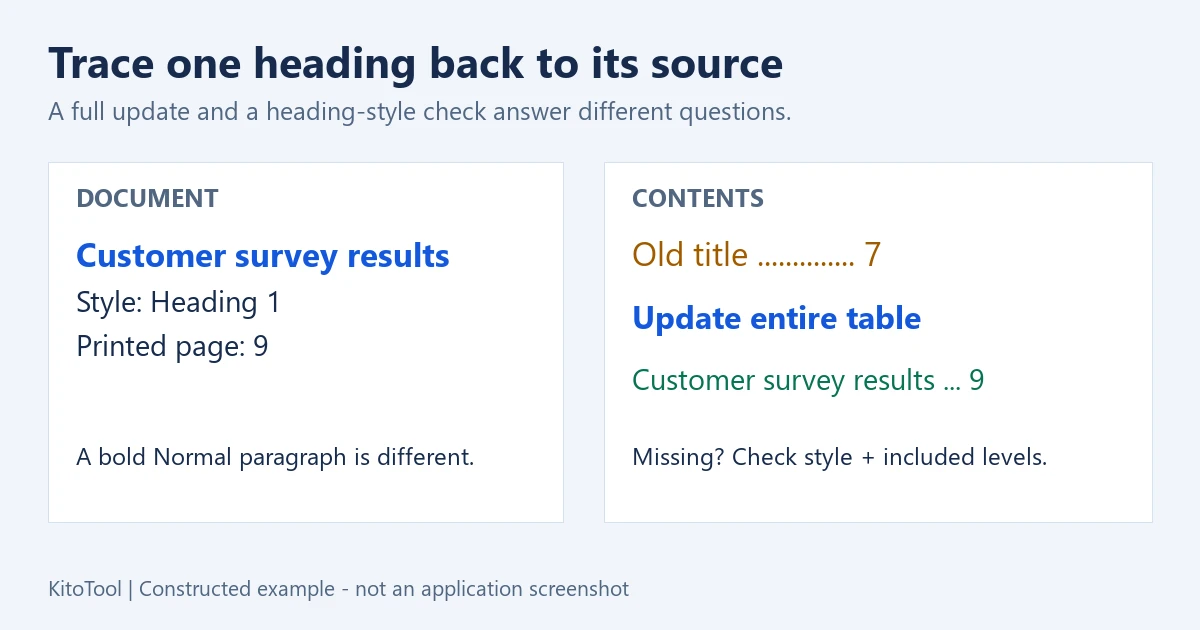
Big, bold text is not necessarily a heading
Go to the missing heading in the body and inspect Home → Styles. A paragraph can look like a title while still using Normal with direct font formatting.
In a conventional heading structure, use Heading 1 for major sections, Heading 2 for their subsections and Heading 3 for the next level. Choose the level for its place in the document, not its visual size. If applying it changes the appearance, adjust the style to suit the template rather than assigning every paragraph the same level.
Try a short exercise: create “Survey results” as Heading 1 and “Customer feedback” as a separate Normal paragraph made bold by hand. Build an automatic contents table. Then assign Heading 2 to the second paragraph, update the entire table and compare the entries. Microsoft’s insertion guide describes how automatic tables use document headings.
If the paragraph already has the correct heading style, inspect References → Table of Contents → Custom Table of Contents in a desktop version that provides it. Check Show levels and, for custom templates, style mappings under Options. A table configured to include two levels need not list Heading 3. See Microsoft’s customisation guidance.
Why hand-edited entries disappear after an update
An automatic contents table is generated from the document. Correct the source heading first. A different title typed directly into the generated table may be replaced when Word rebuilds it.
A manually typed contents page has the opposite limitation: it has no automatic relationship to the headings. Confirm which kind you have before treating an unsuccessful Update command as another fault. Converting a manual page to an automatic table is a separate change; keep a copy so you can compare its layout and wording.
Desktop Word, Word for Mac and Word for the web expose different controls. When a custom template needs options the web version does not provide, use a suitable desktop version instead of restyling every heading to fix one missing entry.
Follow three entries through the final deliverable
Check the first entry, the entry you repaired and the last one. Compare each title, indentation level and printed page number with its source.
If the introduction uses Roman numerals or a section restarts numbering, PDF page position and the document’s printed page number may differ. The ninth page in a viewer is not necessarily the page labelled 9. Check the numbering scheme the report actually uses.
Save the DOCX, update the table after the final layout change, export and open the exact PDF you intend to send. Test contents links when the export includes them. Correct-looking text does not prove the destination is correct.
If the document repaginates on another computer, investigate fonts and paper settings across the two machines. A format converter does not replace repairing heading structure and updating Word fields.
A contents page makes a small promise: the reader can find the section they need. A few deliberate checks help keep that promise before the report leaves your hands.