Compare the same document on both computers, change one setting at a time and verify headings, table rows and page endings.
If a Word document gains pages, moves a heading or shifts a table on another computer, keep the original and compare the same copy on both devices. Check fonts first, then page size and margins, followed by paragraph spacing and pagination. Adding blank lines or shrinking all the text can conceal the cause while creating new layout problems.
Establish what changed before editing
Compare both documents in Print Layout, rather than comparing a desktop page with a mobile or browser preview. Record the application and version. A .docx extension does not mean every viewer uses the same layout behavior as desktop Word.
Choose three checkpoints: a heading in the middle, the last row of a table and the final sentence on an affected page. Note the words on either side of a page boundary. Matching page counts alone cannot establish that the layout matches.
| What you notice | Start by inspecting |
|---|---|
| Line endings differ across many early paragraphs | Actual font, size and available text width |
| Only one heading or table block moves | Nearby paragraph settings and breaks |
| Differences begin after a landscape appendix | Page setup and section scope |
| Word looks correct but the paper print does not | Print preview, paper and print scaling |
Also confirm that both people opened the same document revision. A layout comparison is unreliable when the text has been edited independently.
Check the font in the affected passage
A missing font can be replaced, changing character widths and line endings. Inspect regular, bold, italic and accented text, rather than relying only on the name displayed in the font box. Test the affected passage in a copy and compare with the originating computer before replacing fonts more broadly.
Where supported, desktop Word on Windows offers File → Options → Save → Embed fonts in the file. Save and reopen the result on the recipient's computer. Microsoft explains font embedding, including the editing limitation of embedding only used characters. Options vary by Word version.
Embedding permissions differ between fonts. Check the allowed use; a font may not permit embedding or editing in the intended way. Microsoft Typography documents the permission flags. Embedding addresses one potential cause, rather than guaranteeing identical layout across applications.
Compare page size, orientation and margins per section
In desktop Word, inspect Layout → Size, Orientation and Margins, or the corresponding Page Setup controls. Compare the actual values and the scope of the change: the current section or the whole document. Microsoft's guidance covers orientation and section scope on Mac and margin controls.
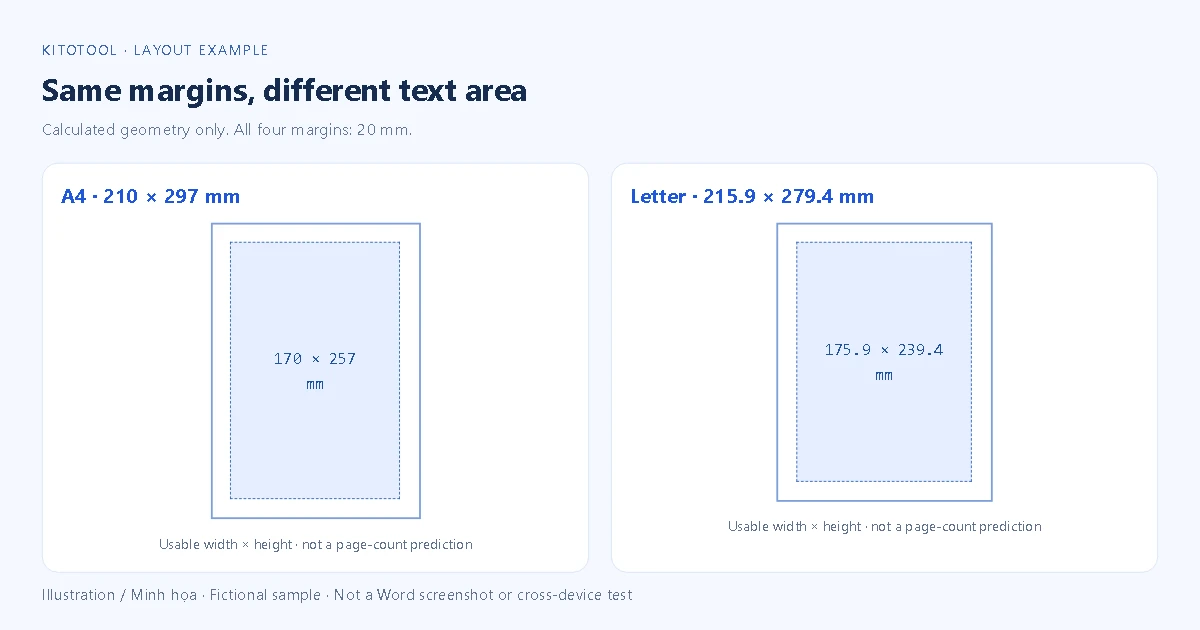
For a geometric example, A4 measures 210 × 297 mm and Letter 215.9 × 279.4 mm. With 20 mm margins on all sides, their text areas are 170 × 257 mm and 175.9 × 239.4 mm. Letter offers more width but less height in this example, so wider paper does not automatically mean fewer pages. This calculation does not predict an actual Word page count.
Use the recipient's required paper size and the intended design. Do not normalize a deliberately landscape appendix merely to make every section identical.
Inspect paragraph spacing and pagination
Select the affected paragraph and compare Line spacing, Before/After and indents in the Paragraph dialog. If it uses a Style, inspect those properties as well. Microsoft describes paragraph-spacing controls. There is no need to change defaults for all future documents to repair this file.
Turn on ¶ under Home, then inspect empty paragraphs and breaks. Under Line and Page Breaks, review Keep with next, Keep lines together and Page break before. These settings can intentionally move a block to the next page; Microsoft explains paragraph grouping. Avoid disabling every option just to fill a gap.
A chapter that must start on a fresh page should use an appropriate break instead of a stack of empty paragraphs. For an isolated unwanted final page, use the separate last-blank-page guide rather than deleting section structure indiscriminately.
Before and after: change one factor and check the same landmarks
Imagine a sample report whose “Inspection results” heading sits near the bottom of a page. It moves on the recipient's device even though the text is unchanged. On a copy, compare the font, reopen the file and inspect the heading, final table row and last sentence. If the change did not help, restore it and move on to page setup, then paragraph settings. Record which change actually resolves the discrepancy.
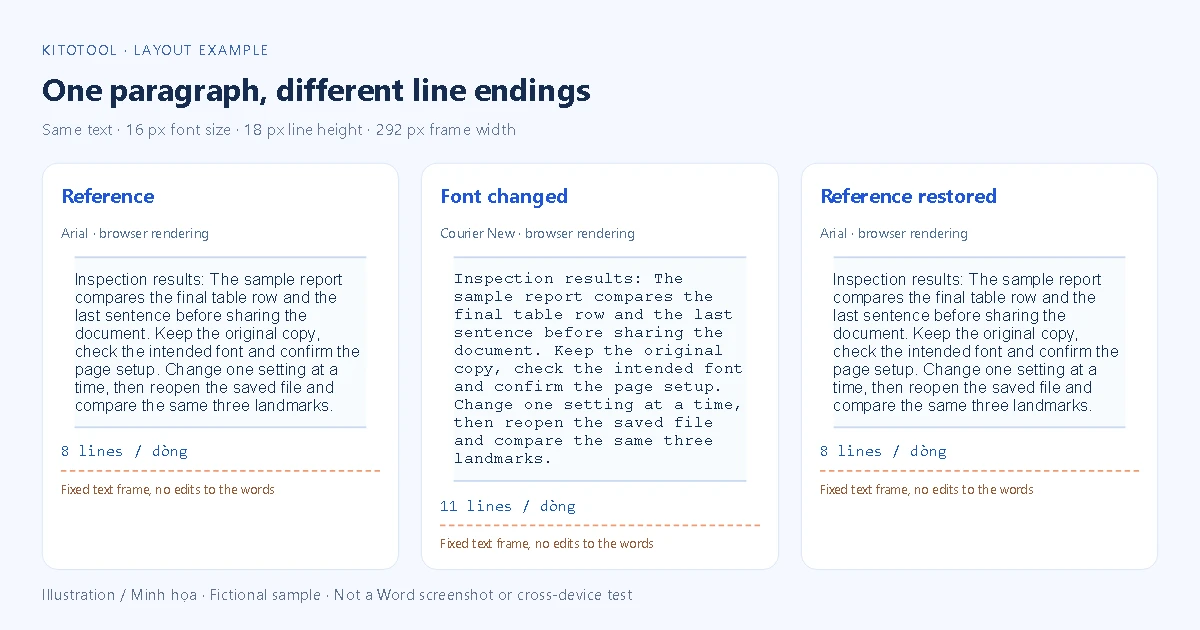
The illustration changes only the font while keeping text, point size and frame width fixed. It does not establish that either font is faulty or predict Word's exact line breaks. A real document also contains tables, objects and sections, so review the affected material beyond the first corrected heading.
Choose an editable DOCX or a checked reading copy
For editing, send DOCX with a short note about the intended fonts and paper size; an accompanying reference PDF can make comparison easier. For reading or printing, export from the computer displaying the approved layout and inspect the exact PDF. Check the same landmarks, accents, table edges and links. Microsoft documents PDF export; a successful export still needs an output check.
KitoTool's Word to PDF converter can create a PDF from readable DOCX content, but fonts, objects and pagination may differ from the source. Its current PDF output has no selectable or searchable text layer. For fidelity to an approved Word layout, prefer exporting from the original application. A conversion with the desired page count is not by itself a verified repair.
If the discrepancy remains, record the first differing passage, application versions and a small example with private content removed. That provides a clearer next diagnostic step than applying broad formatting changes to the entire document.