Use a known-good control video to narrow down the fault before changing settings or converting the original recording.
The familiar voices are there, but the video window stays black. When the recording captures something you cannot repeat, it is easy to assume the pictures are gone. That symptom alone does not establish damage: a player can decode the audio while failing to decode or display the video track.
Keep the original. Before installing software or converting the whole recording, find out whether the problem follows the file or the player.
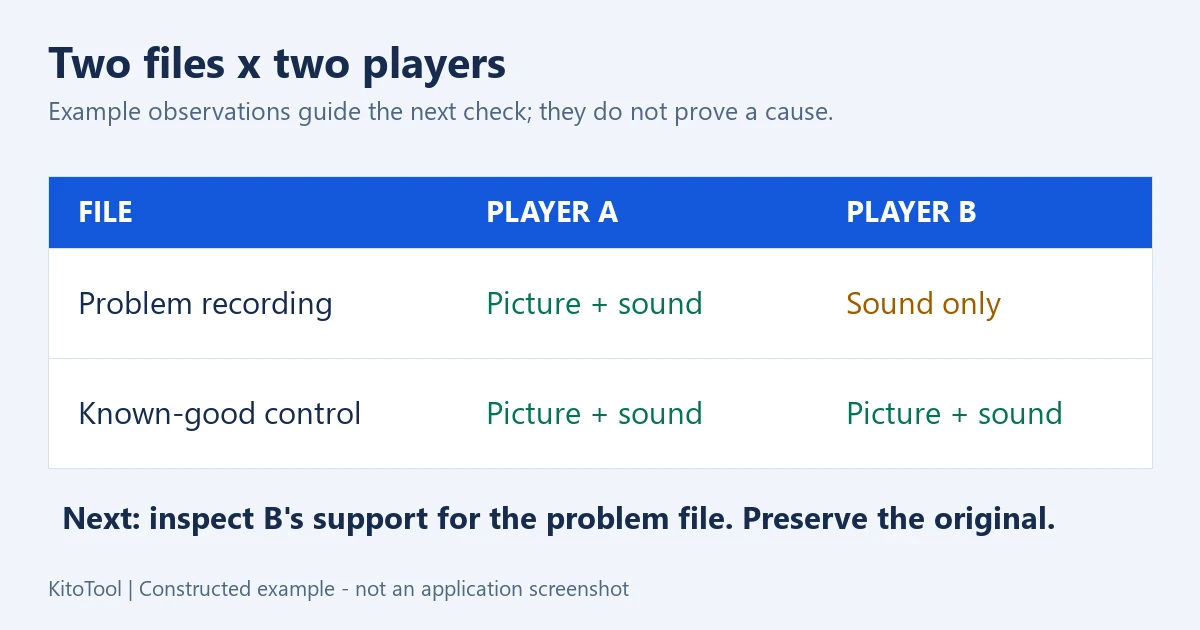
Compare two files in two players
Use the problem recording and another video you have already watched successfully. Open each in two trusted applications you already have, such as the operating system’s player and a browser that supports the format. Where possible, also check the recording on its source device.
| Observation | Investigate next | Not yet established |
|---|---|---|
| The problem file shows video in A but only audio in B | B’s decoding support or display path | That the recording is damaged |
| Both files are black in B but work in A | B’s settings, updates or graphics path | That both recordings are damaged |
| The problem file fails in A and B while the control works | Source copy, transfer and video track | That a codec alone will fix it |
| The source-device copy works but the received copy does not | Download or export from the source again | That renaming the extension will help |
This is a diagnostic comparison, not an automatic cause detector. Two players can rely on the same operating-system decoder, so their results are not necessarily independent.
MP4 does not identify every track inside
MP4 is a container. Its picture and sound tracks are encoded separately, and a device may support one without supporting the other. Playing a different MP4 therefore does not prove support for this one.
Microsoft’s Edge troubleshooting guide discusses codec and decoder support. HEVC/H.265 playback, for example, depends on the appropriate decoding components and configuration. A black window is not a reason to assume everyone needs the same codec package.
If the player offers media information, note the video codec, audio codec and duration. Otherwise, record the player name, operating-system version and exact error. These are better clues than changing .mov to .mp4: renaming does not re-encode the contents.
Choose the next action from the comparison
Only one player fails. Update it and the operating system through official channels, then reopen the file. If several videos fail there, follow the vendor’s graphics or decoding guidance. Change one setting at a time and restore it if there is no improvement, so you can tell which change mattered.
Only the received copy fails. Download it again and wait for completion. Compare the exact file size when the sender can supply it. Equal sizes do not prove byte-for-byte identity, but an unexpected difference is a reason to check the transfer. Play the source recording through the middle and near the end as well as the opening frame.
The format is unsuitable for the destination. Create a compatible copy from a working source. Apple distinguishes unsupported formats from damaged files. If the source application can still read the recording, exporting there may be preferable to passing a problematic copy through several converters.
For a browser-based attempt, KitoTool Video Format Converter offers MP4 with H.264 video. It must be able to read the source first. It cannot restore missing frames or guarantee support for every input codec. An unreadable-source error is a reason to return to the source or choose suitable desktop software, not to repeatedly convert the same file.
Check the destination, not just the new thumbnail
Play the new file in the actual receiving application or device. Watch the opening, middle and end; use a speaking section to check picture–sound synchronisation. Compare duration, orientation and any subtitles you need. Conversion can change quality, size or additional tracks, so a visible thumbnail is not a complete check.
If it now plays correctly but exceeds a sending limit, use Video Compressor for that separate task. Making the file smaller and diagnosing missing picture playback are different decisions.
Protect the original recording first. A controlled comparison can tell you whether to change the player, recover the transferred copy or create a new output without gambling the only good source on repeated conversions.