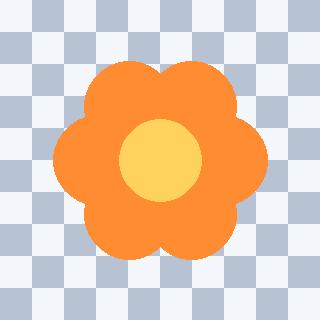
Use two background colours and downloadable examples to separate real transparency from squares embedded in the picture.
You drop a PNG into a design expecting the background to show through. Instead, a rectangle of grey and white squares follows the flower, logo or product. The download looked like a cutout and the extension says PNG. What went wrong?
A checkerboard may be the editor’s way of showing transparency, or it may be actual picture content. The practical test is to put the downloaded image over two different solid colours.
Put the same file over pink, then dark teal
Open a design in an application that supports transparent images. Place the PNG above a pink background layer, then change that underlying layer to dark teal. Keep the image itself unchanged.
Inspect the area around the subject:
| What changes? | What it suggests | Next check |
|---|---|---|
| Pink, then teal shows through the surrounding area | That area has transparency | Inspect hair, soft shadows and narrow edges |
| Grey and white squares stay inside a fixed rectangle | The checkerboard may be baked into the image | Repeat in another application that supports alpha |
| Some areas reveal the background, but squares remain elsewhere | Transparency may be partial or the background incompletely removed | Check each region rather than declaring the whole image clean |
Changing a design’s background layer is different from changing a viewer’s preview setting. If the viewer always draws a checkerboard to indicate transparency, use an editor with a real coloured layer behind the image. A screenshot from search results is not a substitute for the original download.
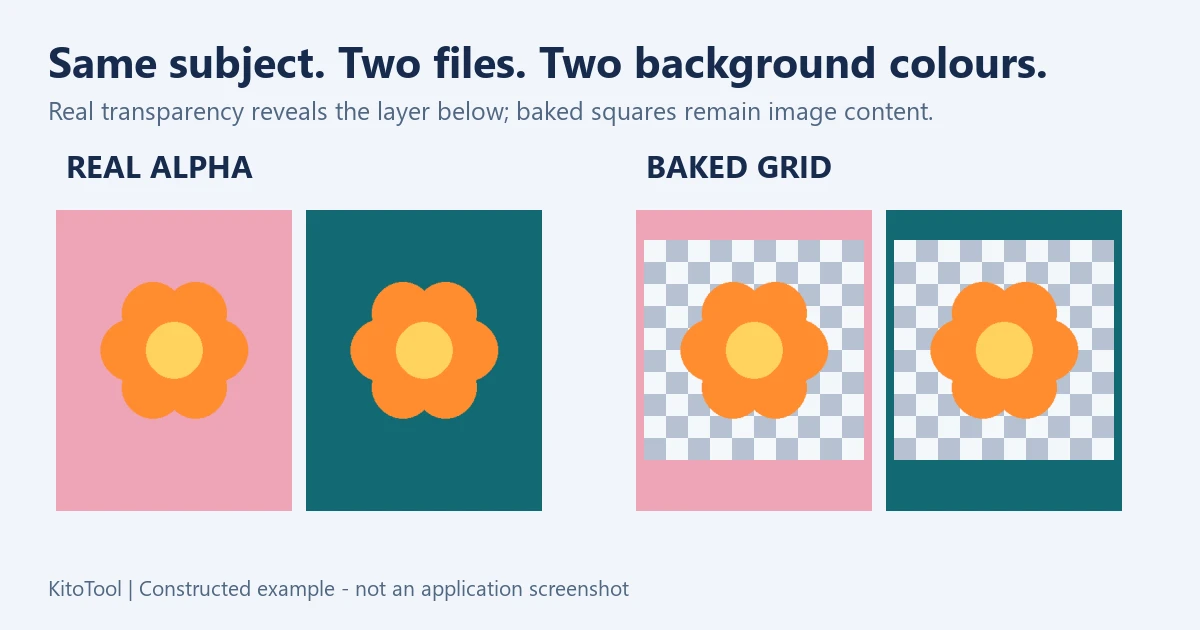
Two similar-looking downloads you can compare yourself
Try the flower with real transparency and the flower with a baked checkerboard. KitoTool constructed these demonstration files with the same subject and dimensions; they are not before-and-after evidence from a customer repair.
In the first file, the area outside the petals lets the layer below show through. In the second, the grey and white squares are image pixels, so they continue to cover the coloured layer.
MDN describes alpha as opacity information. In practical terms, a pixel can describe both a colour and how much of the background remains visible through it. Finding a few transparent pixels in a corner does not prove that the entire area around the subject is clean.
Saving as PNG again does not remove the squares
PNG can preserve transparency. It does not automatically decide that every grey or white square should disappear. MDN’s image-format guide describes format capabilities; the exported image must actually contain the transparency you need.
A screenshot of a cutout on a checkerboard can capture the grid along with the subject. Saving that screenshot as PNG preserves the screenshot, not the original cutout’s alpha. Renaming a JPG to PNG does not remove its background either.
Before processing again, look for the original transparent asset or a layered design file. Recovering the right source can preserve fine detail that another removal attempt would need to estimate.
If the checkerboard is already part of the picture
You need a background selection, mask or removal workflow to create transparency again. For a clearly separated subject, you can try KitoTool Background Remover. Keep the transparent-background option when downloading the PNG; choosing a background colour creates a different composited result.
Inspect difficult areas: white petals against white squares, fine hair, glass, translucent materials and soft shadows. A checkerboard mixed into those regions may not separate cleanly. The tool currently has no manual edge-repair brush; precise finishing may require another editor or a better source.
Avoid deleting every white pixel when white is also part of the subject. Removing product detail along with the background is not a successful cutout.
Test the file that actually leaves your computer
Insert the downloaded result into the final design and repeat the two-colour test. Examine its edges at a useful zoom, then check the intended background colour. A pale fringe can be almost invisible on white and obvious on dark teal.
For a separate choice between formats, see the image tools directory. For a checkerboard that follows the subject, the key question is narrower: which parts of this exact file really let the background show through? Once that test passes, you have a much clearer basis for using the image in a slide, banner or product page.