
Check stored types before changing cells, then verify the corrected total against the original data.
Excel SUM not working even though cells show numbers? Some of those values may be text. A range formula such as =SUM(A1:A3) can skip them, so a plausible-looking column produces an incomplete total. Applying a Number format alone does not necessarily convert the stored values.
Test a few cells before changing an entire column. Work on a copy, confirm what the field represents, and compare the corrected result with the source. If the cells are already numeric, investigate the formula range and calculation settings instead.
A three-cell example you can reproduce
In a blank worksheet, enter '100 in A1, then enter 200 and 300 in A2 and A3. The initial apostrophe makes A1 text; the grid still displays 100.
| Cell | Enter | What you see | Stored type |
|---|---|---|---|
| A1 | '100 | 100 | Text |
| A2 | 200 | 200 | Number |
| A3 | 300 | 300 | Number |
Enter =SUM(A1:A3) in B1. The expected result is 500. Convert A1 to a real number and the expected total becomes 600. These are deliberately constructed sample values, not a screenshot of a repaired customer workbook.
Microsoft documents SUM’s handling of text. This example uses cell references in a range; other expressions can apply different coercion rules.
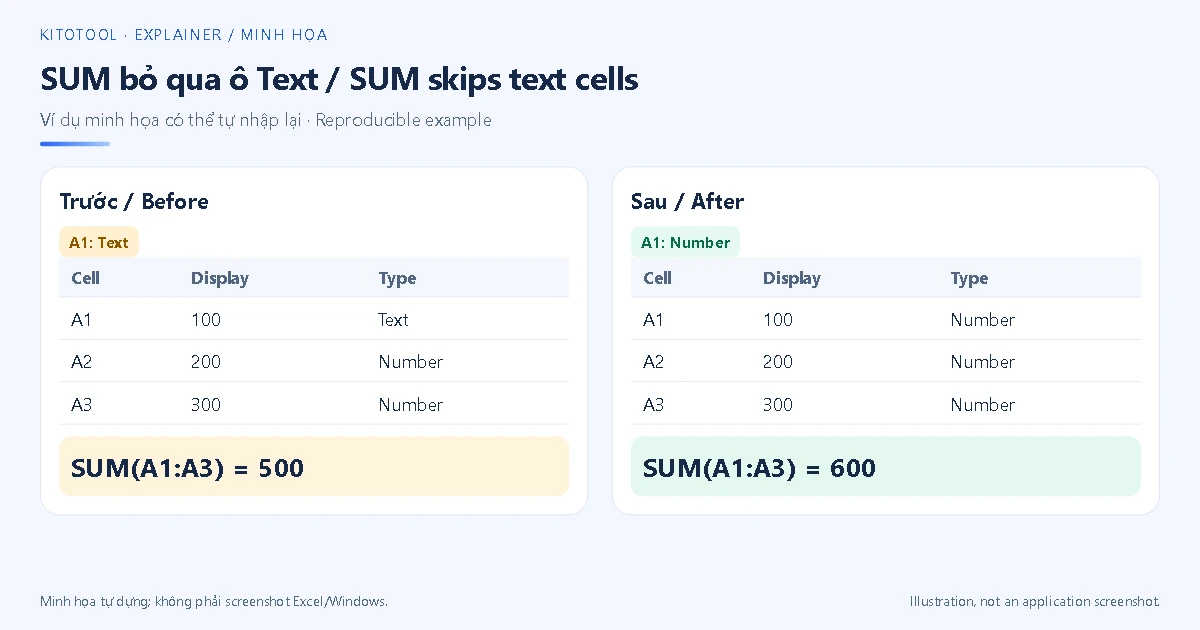
Check the type rather than the alignment
Enter =ISNUMBER(A1) in a helper column and fill down. The example produces FALSE, TRUE, TRUE. =ISTEXT(A1) offers the complementary check. Microsoft’s IS function reference explains that the type test does not convert a numeric-looking string first.
A green error indicator or left alignment may help locate suspicious cells, but both are imperfect clues. Alignment is editable and error checking may be disabled. Also identify the field: an amount normally needs arithmetic, while a phone number or product ID may deliberately be text.
For identifiers, see how to preserve leading zeros in Excel. Converting every column to numbers can damage the very values you need to preserve.
Convert only the values that should be numeric
Use Convert to Number when available. Select a few affected cells, open the relevant error-checking menu and choose Convert to Number. Recheck ISNUMBER and SUM before expanding the selection. Microsoft describes the conversion workflow.
Use a helper column for an explicit separator rule. Suppose A2 contains text 1.234,56, and the source specifies a comma decimal separator and a period thousands separator. Try =NUMBERVALUE(A2,",","."). Its numeric value should equal 1234.56; the displayed punctuation follows the workbook’s settings. NUMBERVALUE lets you declare the decimal and grouping characters.
Examples use English function names and comma argument separators. An installation using semicolons may require =NUMBERVALUE(A2;",";"."). The quoted separators describe the source data and should not be changed simply because the argument delimiter changes.
Do not guess whether 1.234 means 1234 or 1.234. Check the exporting system and representative records. Currency symbols, unusual spaces and percentages need their own interpretation. Preserve the original column; after checking the helper results, copy and Paste Special → Values to a separate result column if appropriate.
If the cells are numbers but the result is still wrong
Inspect the actual range, sheet and final row in the formula. A requirement to total only visible filtered rows differs from summing a whole range; changing data types will not resolve that difference.
If changing a value leaves the result unchanged, check Formulas → Calculation Options and Automatic, or try Calculate Now. Microsoft explains recalculation settings; controls differ between desktop and web versions.
If the cell displays the literal =SUM(...), check Show Formulas and whether the entry was stored as text or began with an apostrophe. After correcting the format, re-enter the formula so Excel can interpret it.
Verify the repaired column
Compare the record count, several values including negatives and decimals, and an independent control total. The miniature example should finish with three TRUE type checks and a total of 600. A real report needs its own source reconciliation; a changed total is not proof of correctness.
If your starting document is a text-based PDF, KitoTool PDF to Excel can create a workbook for further inspection. It does not repair an existing XLSX file or remove the need to validate extracted numbers.