Preserve product IDs and postal codes as text, avoid premature CSV conversion and distinguish display formatting from stored values.
When Excel turns 001234 into 1234, it has often interpreted an identifier as a number. Product IDs, phone numbers and postal codes may need to preserve every character. Decide what the column represents, then use Text before entering or importing identifiers.
An identifier and a quantity need different treatment
In this article's invented data, 001234 is a six-character product ID. It is not automatically interchangeable with 1234. A quantity of 1,234 items, however, can be stored as a numeric value for arithmetic.
| Column content | What matters | Starting data type |
|---|---|---|
Product ID 001234 | Exact character matching | Text |
| Postal code or phone number with meaningful zeroes or punctuation | Original representation | Text |
| Quantity used in calculations | Numeric value | Number with suitable display formatting |
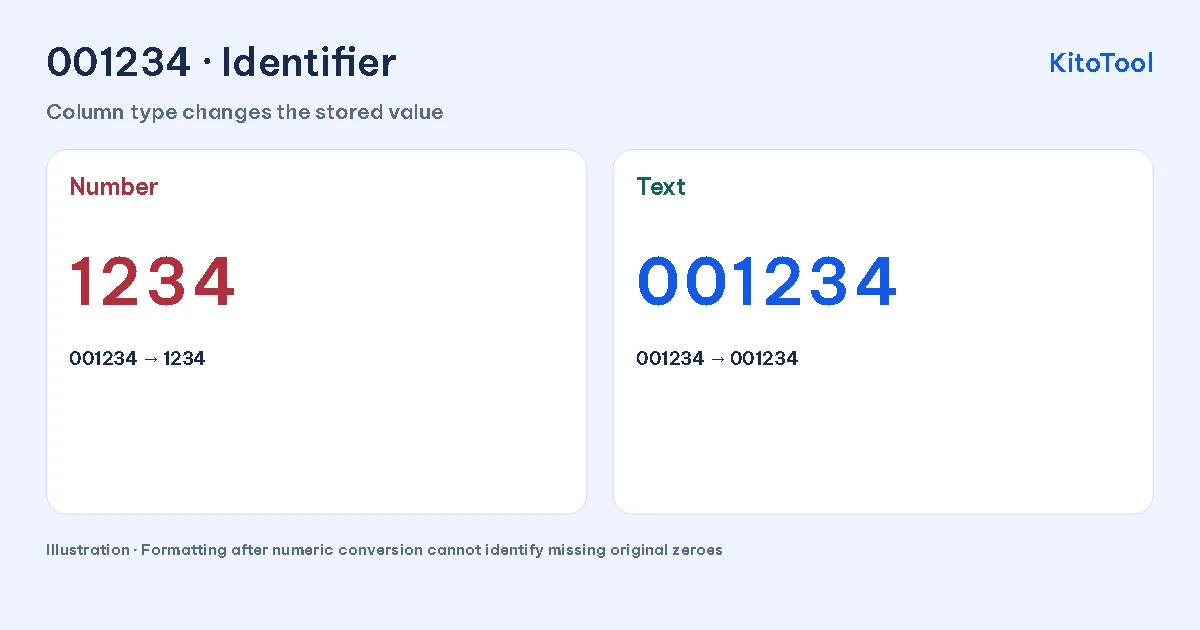
This is an illustration using invented data, not an Excel screenshot. The value 1234 alone does not tell you how many zeroes, if any, originally preceded it.
For manual entry, set Text first
Select the ID column, open Format Cells and choose Text before entering values. For one cell, a leading apostrophe such as '001234 also tells Excel to treat the entry as text. Microsoft documents these methods and notes that changing the format afterward does not restore earlier values.
Enter a test row and inspect the formula bar. If the source identifier is 001234, verify the stored representation rather than relying only on how the cell looks under a custom format.
For CSV imports, prevent conversion at the source step
A CSV does not carry workbook-style column types. In Data → From Text/CSV, inspect automatic type detection. Where available, disable detection and use Transform Data to keep the identifier column as Text before loading it.
If Power Query has already added a Changed Type step that converts the column to numbers, remove or correct that conversion and reread the source values first. Converting the number 1234 into the text "1234" later cannot reconstruct missing characters. Microsoft's Power Query data-type documentation explains the type-inference steps involved.
Test more than one row. An example set containing 001234, 000057 and 740026 catches this error better than checking only 740026, which looks unchanged under either interpretation. For postal-code data, include a code that begins with zero as well as one that does not.
Custom formatting is not the same as storing text
If you deliberately keep a number, the custom format 000000 can display 1234 as 001234. The underlying value remains numeric.
The formula =TEXT(A2,"000000") produces text using a six-digit pattern. Use that only when the source specification actually requires six digits. An arbitrary padding rule can silently invent the wrong ID. See Microsoft's TEXT function reference; argument separators can differ with regional settings.
When the original value is already lost
Return to the untouched export, source system or backup. Without a known width rule, do not prepend the same number of zeroes to every record. Long numeric identifiers can also suffer rounding because Excel numeric values have 15-digit precision; padding cannot recover original trailing digits.
Keep a workbook copy for your working data. If you export CSV, reimport that exact output with controlled column types and compare the test records again. Correct-looking cells in one workbook do not establish how the next application will interpret the export.