Identify the real delimiter, preview the import and validate quoted fields and identifiers before exporting.
If every CSV row lands in column A, check the delimiter before changing fonts or file extensions. The file may use semicolons while Excel expects commas. Keep the original, import it with a preview and choose the character that actually separates its fields.
Inspect a real row before choosing a delimiter
Open a copy in a plain-text editor. In 001234;"Paper; pens";"12,50", semicolons separate three fields. The semicolon inside the quoted product name belongs to that field. The comma in the final value belongs to the source's number convention; it is not another column separator.
Download the fictional semicolon-delimited CSV sample to try the distinction. The expected result has three cells: 001234, Paper; pens and 12,50. Count fields with quoting in mind rather than choosing whichever punctuation mark appears most often.
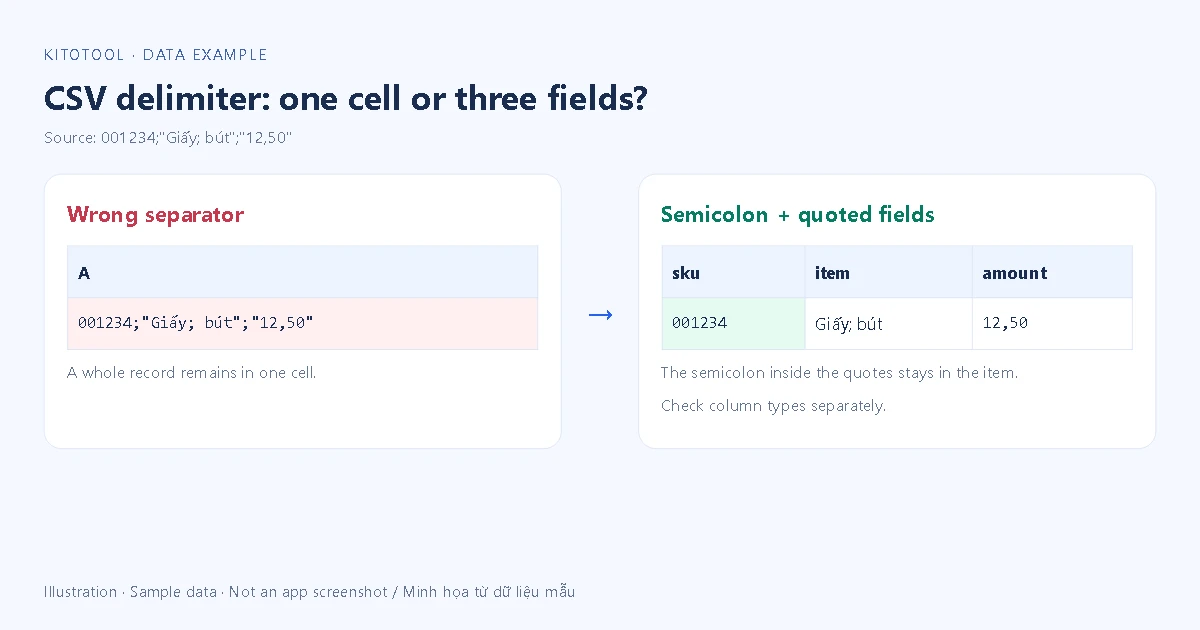
Import the untouched file with a preview
In desktop Excel with Text/CSV import, start a blank workbook and choose Data → From Text/CSV. Select the source, then change Delimiter to match it. Choose Semicolon for this example and confirm that the preview has three columns. Microsoft documents selecting the import delimiter before bringing the values into the sheet.
Inspect more than the header: include a middle row and a record with punctuation inside a name or note. If most rows look right but a few shift into extra columns, stop before loading. Inconsistent quoting or a malformed export may be the cause. A delimiter setting cannot repair every broken record.
The CSV format described in RFC 4180 explains quoted fields and escaping embedded quotation marks. That document describes comma-separated CSV. Semicolon variants still require the importer's settings to match the exporter's conventions. Replacing every semicolon with a comma would also alter the semicolon inside Paper; pens.
Validate values as well as column boundaries
| Expected value | What to inspect |
|---|---|
Identifier 001234 | Six characters, with both leading zeroes intact |
Product Paper; pens | One cell, without an extra column |
Value 12,50 | Interpreted with the intended decimal convention if calculations are needed |
| Record count | No added or missing records caused by embedded line breaks |
Import identifier columns as Text before automatic numeric conversion. The Power Query Text/CSV documentation treats delimiter selection and type detection separately. Setting Text after zeroes have disappeared does not reliably recover the original ID. If the columns are correct but accented names are garbled, follow the separate UTF-8 CSV import guide.
When the rows are already in column A
On a copy whose rows still contain the original text, Data → Text to Columns can split the values. Choose a delimited operation, the matching separator and the appropriate text qualifier. Inspect the preview and send the result to an empty destination range so adjacent cells are not overwritten.
Reimport the source instead if Excel has already converted identifiers or dates. Splitting a changed value is not a recovery method. Menu names and available import features vary between Windows, Mac and Excel for the web; an older version may offer a Text Import Wizard. A system-wide regional setting change is unnecessary for importing one file deliberately.
Reopen the exact export you will deliver
Keep an .xlsx working copy if the next steps stay in Excel. For CSV delivery, confirm the recipient's separator, encoding and numeric conventions. Export a new file, reopen that output with the recipient's expected settings and compare record counts, identifiers, accented names and quoted fields against the source. Correct columns in your current workbook are only the first check.