Separate encoding problems from delimiter and data-type errors, then import UTF-8 CSV deliberately and check the exported result.
If a CSV shows Tiếng Việt where you expect Tiếng Việt, keep the original file and import it with the correct character encoding. Changing the font or renaming .csv to .xlsx does not repair incorrectly decoded text.
First, separate three different import problems
A CSV contains text values and separators. The importing application also decides how to decode characters and which columns contain numbers, dates or text. Those decisions can fail independently.
| What you see | What to check first |
|---|---|
| Accented names become unexpected character sequences | Character encoding |
| A complete row appears in one cell | Delimiter, such as a comma or semicolon |
Names look correct but product ID 001234 becomes 1234 | Column data type |
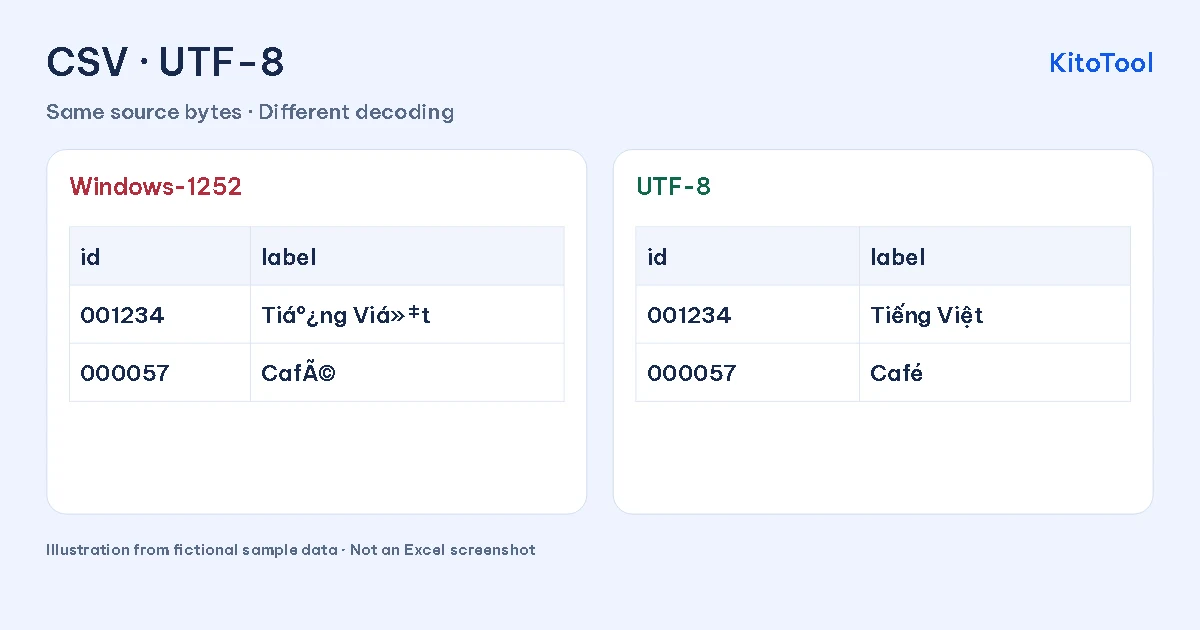
This is an illustration generated from KitoTool sample data, not an Excel screenshot. Both panels start with the same bytes. The comparison demonstrates decoding, not recovery of characters that have already been overwritten.
Import the UTF-8 file deliberately
In desktop Excel with Power Query, start with a blank workbook and choose Data → From Text/CSV. Select the untouched source file. Microsoft documents this import route for opening UTF-8 CSV files.
In the preview, set File Origin to 65001: Unicode (UTF-8) when the exporter used UTF-8. Labels and menu locations vary by Excel version and language. Confirm the text, then inspect column types before loading. If the source encoding is unknown, check with the exporter rather than assuming every CSV is UTF-8.
The Microsoft Text/CSV connector documentation explains the separate encoding, delimiter and type-detection settings. An older installation may expose a Text Import Wizard instead; choose the source character set before completing the import.
Check sample rows before accepting the result
Use a small comparison set: an accented name or place, an identifier beginning with zero, and a quoted value containing the delimiter. For example, Paper, pens should remain in one cell when the original CSV correctly quotes that value.
If the letters are correct but columns still split incorrectly, change the delimiter to match the original. If a product ID loses zeroes, stop automatic numeric conversion and import that column as Text. Correct UTF-8 decoding cannot prevent a separate type-conversion mistake.
For an English-language workflow, include accented customer names and international place names in the check. A file containing only plain ASCII letters may appear correct under several encodings and hide the problem until new records arrive.
Save a checked copy and reopen the export
Keep an .xlsx working copy when you want an Excel workbook. If the receiving system requires CSV, export with its supported encoding and test that exported file. Microsoft notes that a UTF-8 CSV with a BOM can open normally; importing explicitly still gives you control over columns and types.
If the original is intact, reopening it correctly can resolve a display problem. If the source now contains question marks instead of the original letters, an encoding setting cannot identify the missing characters. Request a fresh export or recover an earlier copy.
If you later need a PDF of the checked table, Excel to PDF accepts XLSX, XLS and CSV and provides a cell preview. Use that as a sharing step after verifying the data, rather than as an encoding-repair method.