Find whether columns were excluded or moved to later pages, then check width scaling and the exact PDF output.
When an Excel PDF seems to lose its final columns, first inspect the workbook's print preview. The columns may be outside the print area, continued on later pages or squeezed into an unreadably small sheet. Fix the stage that is wrong before exporting again.
Find out whether columns are absent or on later pages
| What you observe | What to inspect |
|---|---|
| Final columns appear in a later group of pages | Width scaling and pagination |
| Columns exist in the sheet but nowhere in print preview | Print area, hidden columns and export scope |
| Every column fits but the text is tiny | Both width and height may be forced onto one page |
| The PDF looks complete but paper output loses an edge | PDF printing settings and printer paper size |
For an eight-column report, choose four comparison points before changing settings: the first heading, the final heading, an identifier near the top and a value in the last required row. Those checks make it easier to spot an apparently neat export that omits part of the report.
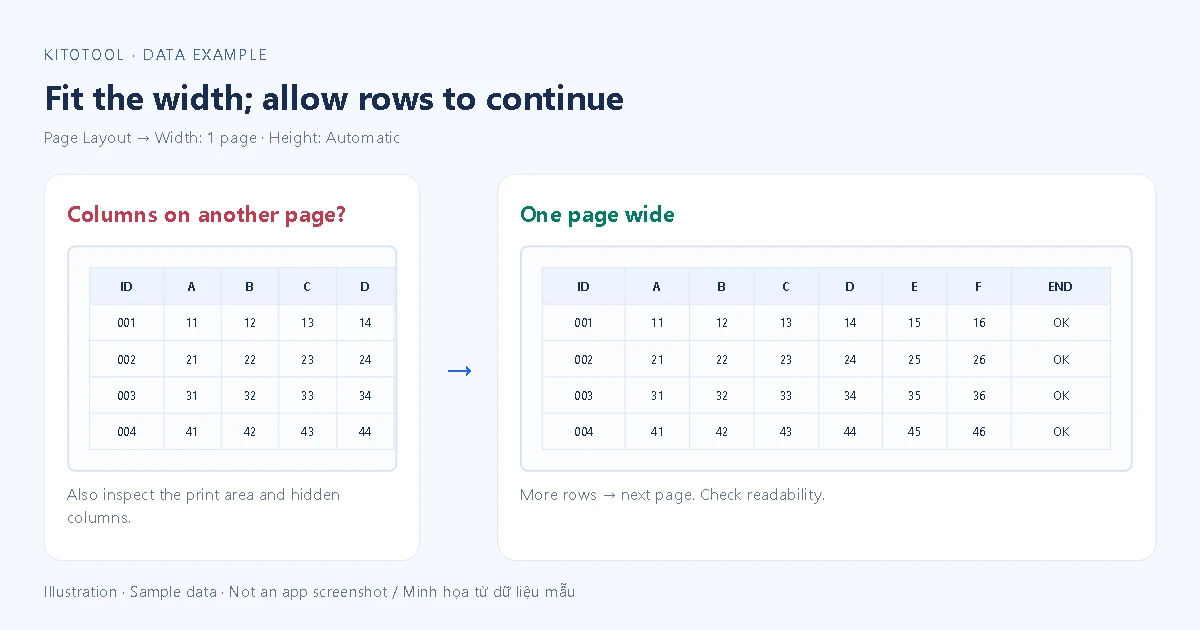
Fit the width without forcing every row onto one page
In desktop Excel with Scale to Fit, use Page Layout, set Width to 1 page and leave Height as Automatic. Microsoft documents this width-only scaling: columns stay together horizontally while rows can continue onto additional pages.
Forcing height to one page as well can work for a short table but shrink a long report drastically. Inspect the reading size after changing the settings. Try landscape orientation, a larger accepted paper size or a simpler table structure when width remains excessive. A wide report cannot always fit A4 and retain comfortably readable text.
Inspect the print area and selected content
Check Print Area and redefine or clear it when it excludes required data. Microsoft explains the print-area controls. Changing scale does not bring a column back if that column was outside the chosen area.
Also inspect hidden columns, the selected sheets and whether the operation exports a selection, a sheet or the workbook. Include only the data the recipient needs. Revealing every hidden column can expose unrelated internal information. Review sheets separately because their contents and page setup may differ.
Validate the saved PDF at a practical reading size
Export under a new filename and open that exact result. Find the comparison points from the source, check totals and identifiers, then inspect an intermediate page as well as the beginning and end. Look for both missing columns and text clipped inside cells.
If the PDF itself is complete but a paper print is cropped, investigate the reader's printing dialog and printer setup separately. A viewer's fit option cannot restore a column that was excluded from the PDF at export. Likewise, checking only the first page can miss columns that were placed elsewhere.
When KitoTool's Excel to PDF converter is appropriate
Excel to PDF can create a PDF table from selected spreadsheet cell data, with paper size, orientation and text-size controls. Its data preview is not the final PDF page layout.
The current converter rebuilds tabular values. It does not fully reproduce Excel print areas, charts, images, merged cells or workbook styling, and it does not recalculate formulas. If the requirement is a faithful copy of a designed Excel print layout, export from the original spreadsheet application and review that output instead. Choose the workflow according to the required document, then verify its final column and required rows rather than relying on the export's success message.