Distinguish missing text from copying permissions and extraction errors, then verify OCR on a representative page.
A PDF can display readable words while containing only a picture of those words. OCR can turn that image into usable text, but an unsuccessful copy operation does not always mean the file needs OCR. Test a representative page first and separate missing text from document permissions or faulty text extraction.
Identify the type of copy failure
| What happens on a short passage | What to check |
|---|---|
| You select an image region rather than individual words | The page may have no text layer; consider OCR |
| Words can be selected but Copy is unavailable | Check the document's copying permissions |
| Selection works but pasted characters are incorrect | Inspect font/encoding problems or request a fresh source export |
| Only some pages allow copying | The file may mix text pages and image-only scans |
Select a sentence, search for a distinctive reference and paste the selection into a plain-text editor. A failed search alone is inconclusive: an existing OCR layer could contain the wrong spelling. Adobe's copying guidance also distinguishes copying from document security settings. When copying is restricted by the owner, request an appropriate version rather than treating OCR as a way around that restriction.
Decide which OCR output you need
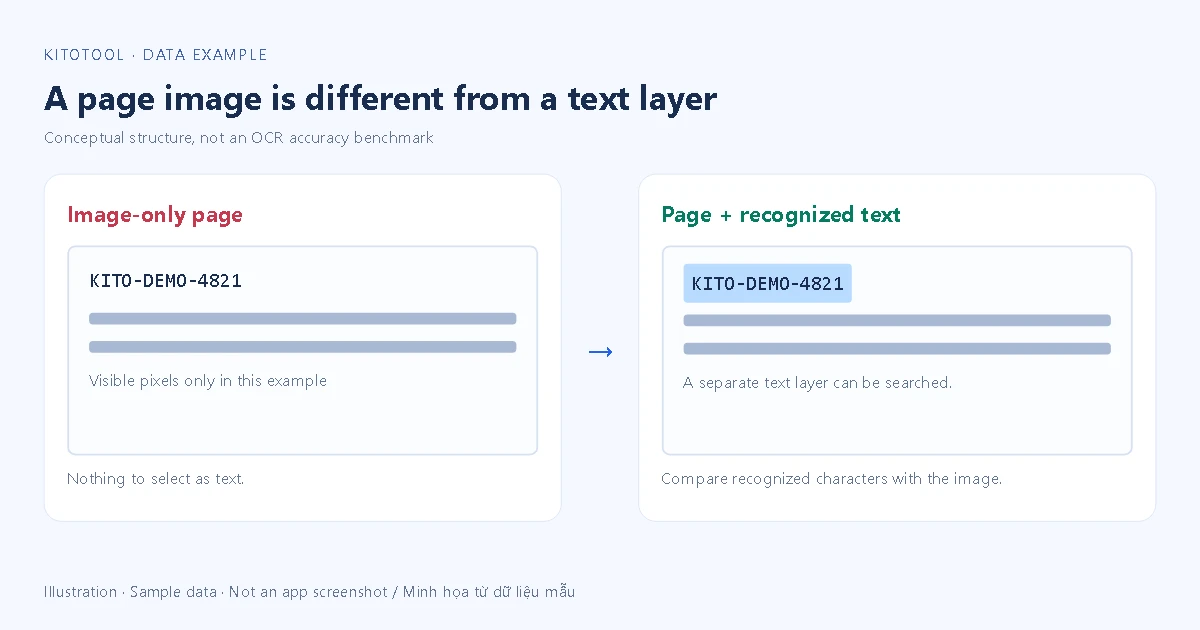
OCR recognizes character shapes in an image. One output may be plain text for reuse; another may preserve the scanned page and add selectable, searchable text. Neither result automatically reproduces the original Word layout or restores a table's structure.
For a fictional reference such as KITO-DEMO-4821, success means more than being able to paste something. Compare each character, its page and the reading order with the image. A zero recognized as the letter O can look plausible in a paragraph while making a record identifier wrong. Keep the source scan available for comparison.
Try a representative page before processing the file
In an Acrobat version that includes Scan & OCR, select the relevant pages, check the recognition-language options and run recognition. Adobe describes this searchable-text workflow. Feature availability and menu labels depend on the version and subscription.
Use an OCR engine that explicitly supports the document's language. For multilingual material, include accented names and less familiar words in the trial. Do not assume that choosing an unrelated language is sufficient. Save a separate result and test a difficult page containing small print, numbers or a table before committing to a batch.
Check the recognized output against the image
Build a small comparison set from your own document: an accented phrase, a reference or amount, and a table row. Paste each into plain text and check character accuracy and order. Decide whether the errors can be corrected, another recognition pass is appropriate or a clearer source scan is needed.
If the original image has missing strokes, a dark book gutter or severe skew, improve that input first. Zooming the viewer cannot recreate missing image detail. Adobe's recognition-error review can help inspect uncertain words, but important references and amounts still need comparison with the source.
Does KitoTool's PDF to Word converter perform OCR?
PDF to Word currently extracts existing PDF text into DOCX, HTML or TXT. It does not recognize image-only scanned pages. Switching the output extension cannot supply a missing text layer. Once suitable text exists, inspect the preview before downloading; complex tables, images and layout are not fully reconstructed.
Searchable text is also separate from secure redaction. If the task is removing sensitive content, read the black-box versus redaction explanation. Being unable to copy a covered phrase does not prove that its underlying information has been removed.